A WordPress to Framer migration can improve website speed, Core Web Vitals, and editing workflows without losing SEO rankings
The biggest migration mistakes are broken redirects, deleted URLs, missing metadata, and rebuilding the site without preserving authority
Every important WordPress URL should either stay identical or redirect with a 301 redirect to the most relevant new page
Before migration, export indexed pages, metadata, backlinks, and top-performing URLs from Google Search Console
Framer websites often load significantly faster than plugin-heavy WordPress websites
A successful migration preserves rankings first, then improves design, structure, and conversion performance afterward
How to Migrate WordPress to Framer Site Checklist
Migrating from WordPress to Framer is not just a redesign.
It is an SEO migration.
And if handled incorrectly, even a beautiful new website can lose rankings, backlinks, indexed pages, and organic traffic almost overnight.
Most businesses moving from WordPress to Framer are usually trying to solve one or more of these problems:
slow website performance
plugin bloat
outdated design systems
difficult editing workflows
poor mobile experience
weak Core Web Vitals
ongoing maintenance frustration
Framer solves many of those issues extremely well.
But the biggest mistake businesses make during migration is focusing entirely on the visual rebuild while ignoring the authority the old website already built.
Google does not rank websites because they look modern.
Google ranks pages because they already have:
trust signals
backlinks
historical indexing
topical relevance
engagement signals
internal link relationships
A successful WordPress to Framer migration protects those signals first.
Then improves the experience afterward.
This checklist walks through the exact process used to migrate WordPress websites to Framer without losing rankings.
Why Businesses Are Migrating From WordPress to Framer
For many service businesses and marketing websites, WordPress eventually becomes heavier than it needs to be.
Especially when the website has been built over years using:
multiple plugins
layered page builders
inconsistent templates
custom fixes
bloated themes
Common problems with older WordPress websites
Problem | Business Impact |
|---|---|
Slow loading speed | Lower SEO rankings and conversions |
Plugin conflicts | Broken functionality |
Difficult editing | Slower marketing workflow |
Poor mobile optimisation | Lost leads |
Bloated page builders | Weak Core Web Vitals |
Security maintenance | Ongoing overhead |
Developer dependency | Higher long-term costs |
Framer solves many of these issues through:
static-first hosting
built-in CDN delivery
cleaner frontend architecture
visual editing
native animations
simplified publishing
For many businesses, the result is:
significantly faster load times
stronger mobile experience
cleaner UX
easier editing
improved Core Web Vitals
lower maintenance overhead
But none of that matters if the migration destroys your SEO.
The Biggest SEO Mistake During a WordPress to Framer Migration
Most redesigns accidentally destroy rankings before launch.
Not because the new website is bad.
Because the migration strategy was incomplete.
The most common migration mistakes
changing URLs unnecessarily
forgetting redirects
deleting indexed pages
losing metadata
removing internal links
rewriting content too aggressively
launching without testing
rebuilding design while abandoning authority
If the old WordPress site already ranks, then Google has already attached trust signals to:
specific URLs
service pages
blog content
backlinks
branded search behaviour
internal link structures
A migration should preserve those signals first.
Then improve the website afterward.
Before You Start the Migration
Crawl and Inventory the Existing Website
Before opening Framer, create a complete inventory of the existing WordPress site.
This becomes the migration source of truth.
Export and document:
all indexed URLs
meta titles
meta descriptions
H1 tags
canonical URLs
structured data
internal links
redirects already in place
pages with backlinks
top organic landing pages
highest-converting pages
Recommended tools
Tool | Purpose |
Screaming Frog | Crawl all URLs |
Google Search Console | Export indexed pages |
Ahrefs / Semrush | Backlink analysis |
GA4 | Traffic and conversion analysis |
PageSpeed Insights | Benchmark Core Web Vitals |
This process reveals:
which pages matter most
which URLs must be preserved
which pages can be consolidated
which pages should be removed entirely
Back Up the Entire WordPress Website
Before touching the live site:
export the database
download theme files
export plugins
export media uploads
create a complete WordPress backup
Even if everything goes smoothly, backups are essential for:
metadata recovery
image access
redirect verification
content references
rollback protection
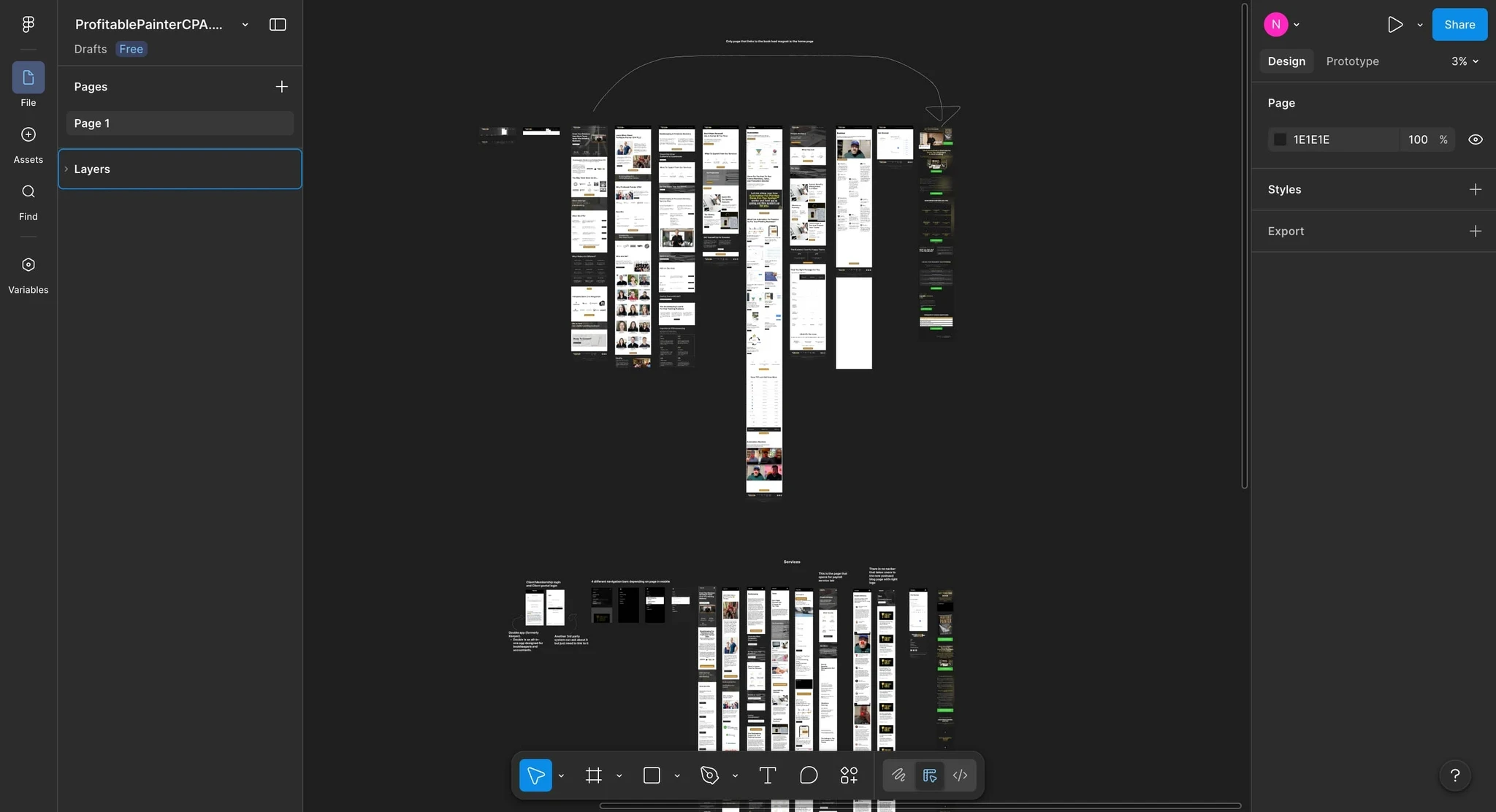
Build the Redirect Map Before Design Starts
One of the most common mistakes during Framer migrations is rebuilding the design before planning redirects.
This often leads to important service-page URLs being forgotten entirely until rankings begin dropping several weeks later.
Redirect planning should happen before rebuilding pages.
Not after.
Example redirect map
Old URL | New URL | Redirect |
/services/web-design | /web-design | 301 |
/blog/old-post | /blog/new-post | 301 |
/category/design | /blog | 301 |
Redirect rules to follow
Keep URLs identical whenever possible
The less you change, the lower the SEO risk.
Every important URL needs a destination
Never leave high-authority pages unresolved.
Avoid redirecting everything to the homepage
Google often treats homepage redirects as soft 404s.
Consolidate thin content strategically
Pages with:
no rankings
no backlinks
no traffic
no conversions
can often be merged into stronger pages instead.
Export WordPress Content Properly
Most migration problems happen during content export.
Especially on websites using:
Elementor
WPBakery
Divi
shortcode-heavy themes
plugin-generated layouts
The safest export workflow
Export WordPress XML
Convert XML to CSV
Clean formatting
Import into Framer CMS
Common export issues
Problem | Solution |
Broken shortcodes | Remove manually |
Elementor formatting | Rebuild sections in Framer |
Gallery shortcodes | Replace with native layouts |
Embedded forms | Rebuild separately |
Internal WordPress URLs | Update before import |
Missing image alt text | Re-add manually |
Important:
Do not blindly migrate everything.
Migration is the best opportunity to:
remove outdated pages
improve metadata
simplify site structure
improve weak content
fix keyword cannibalisation
improve internal linking
Set Up the Framer Site Structure Correctly
Framer should not simply become a visual clone of the old WordPress website.
The migration is a chance to improve:
hierarchy
navigation
responsiveness
readability
conversion flow
UX clarity
Build reusable systems first
Create:
navigation components
footer systems
CTA sections
CMS templates
FAQ sections
testimonial systems
service page structures
This improves:
consistency
scalability
future publishing speed
long-term maintainability
Configure Framer CMS Collections
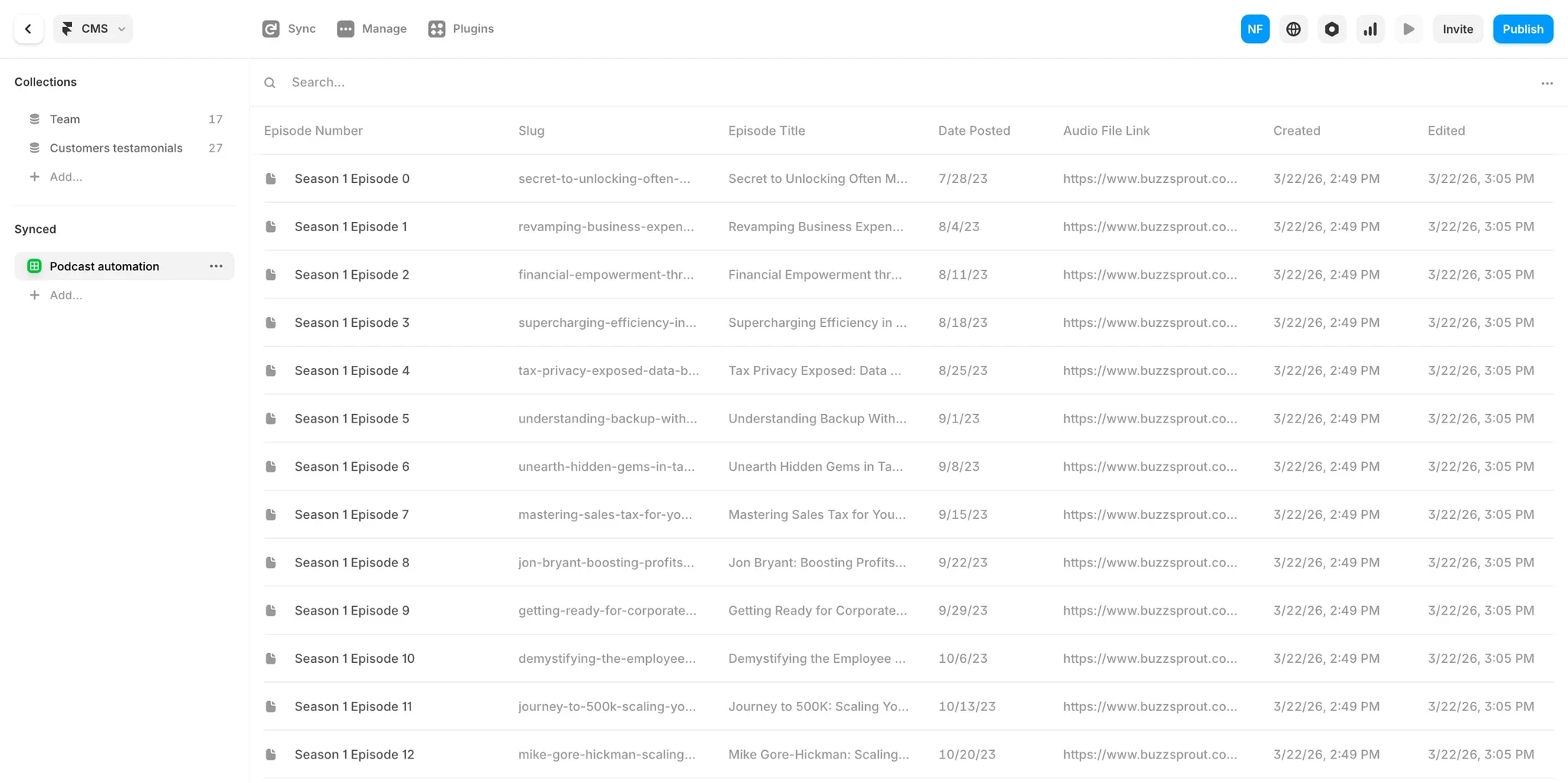
Framer CMS is much cleaner than many older WordPress setups, but the structure still matters.
Common CMS collections include:
CMS Collection | Purpose |
Blog Posts | Articles and SEO content |
Case Studies | Portfolio and proof |
Testimonials | Social proof |
Services | Service landing pages |
Podcasts | Dynamic episode feeds |
Team Members | About pages |
Important Framer CMS considerations
Keep slugs clean and readable
Preserve old URLs where possible
Maintain internal linking
Add proper image alt text
Configure dynamic metadata
Optimise CMS images before upload
Preserve SEO Metadata During the Migration
This is where many migrations silently fail.
Every important page should preserve:
title tags
meta descriptions
Open Graph tags
canonical URLs
structured data
Essential schema to preserve
Schema Type | Purpose |
Organization | Business information |
Article | Blog posts |
FAQPage | FAQ sections |
BreadcrumbList | Navigation |
Service | Service pages |
LocalBusiness | Local SEO |
Framer supports clean metadata implementation, but it still needs to be configured intentionally.
Configure 301 Redirects in Framer
301 redirects preserve authority between old and new URLs.
Without redirects:
backlinks break
rankings disappear
indexed pages become 404s
Google loses trust signals
Common redirect patterns
Old URL Pattern | New URL Pattern |
/blog/* | /articles/:1 |
/category/* | /blog |
/author/* | /about |
/?p=* | /blog |
Important:
Keep redirects active for at least 12 months.
Removing redirects too early can cause delayed ranking drops later.
Optimise Images Before Launch
Image optimisation directly affects:
page speed
Core Web Vitals
mobile performance
SEO
Before uploading images into Framer
compress oversized images
convert images to WebP where possible
resize unnecessary large assets
preserve alt text
test mobile responsiveness
Common image migration mistakes
Mistake | Impact |
Oversized images | Slower load speed |
Missing alt text | Accessibility and SEO issues |
Broken image references | Missing content |
Uncompressed PNGs | Poor Core Web Vitals |
Test the Entire Website Before Launch
Never switch DNS before full QA testing.
Pre-launch SEO checklist
SEO
redirects tested
metadata verified
canonicals checked
sitemap generated
robots.txt reviewed
structured data validated
Performance
mobile responsiveness tested
lazy loading checked
image optimisation verified
Core Web Vitals tested
LCP benchmarked
Content
no broken links
no missing images
no placeholder content
CMS rendering correctly
Conversion
forms tested
analytics connected
CTA buttons working
CRM integrations functioning
Launch the Framer Site Carefully
Once testing is complete:
update DNS
verify SSL
submit sitemap to Google Search Console
request indexing for key pages
The first 30 days after launch matter most
Monitor:
crawl errors
rankings
indexing
redirect issues
Core Web Vitals
traffic changes
Small fluctuations are normal.
Large ranking drops usually indicate:
broken redirects
accidental noindex tags
deleted pages
canonical problems
missing metadata
Real Migration Lessons From a Live Framer Project
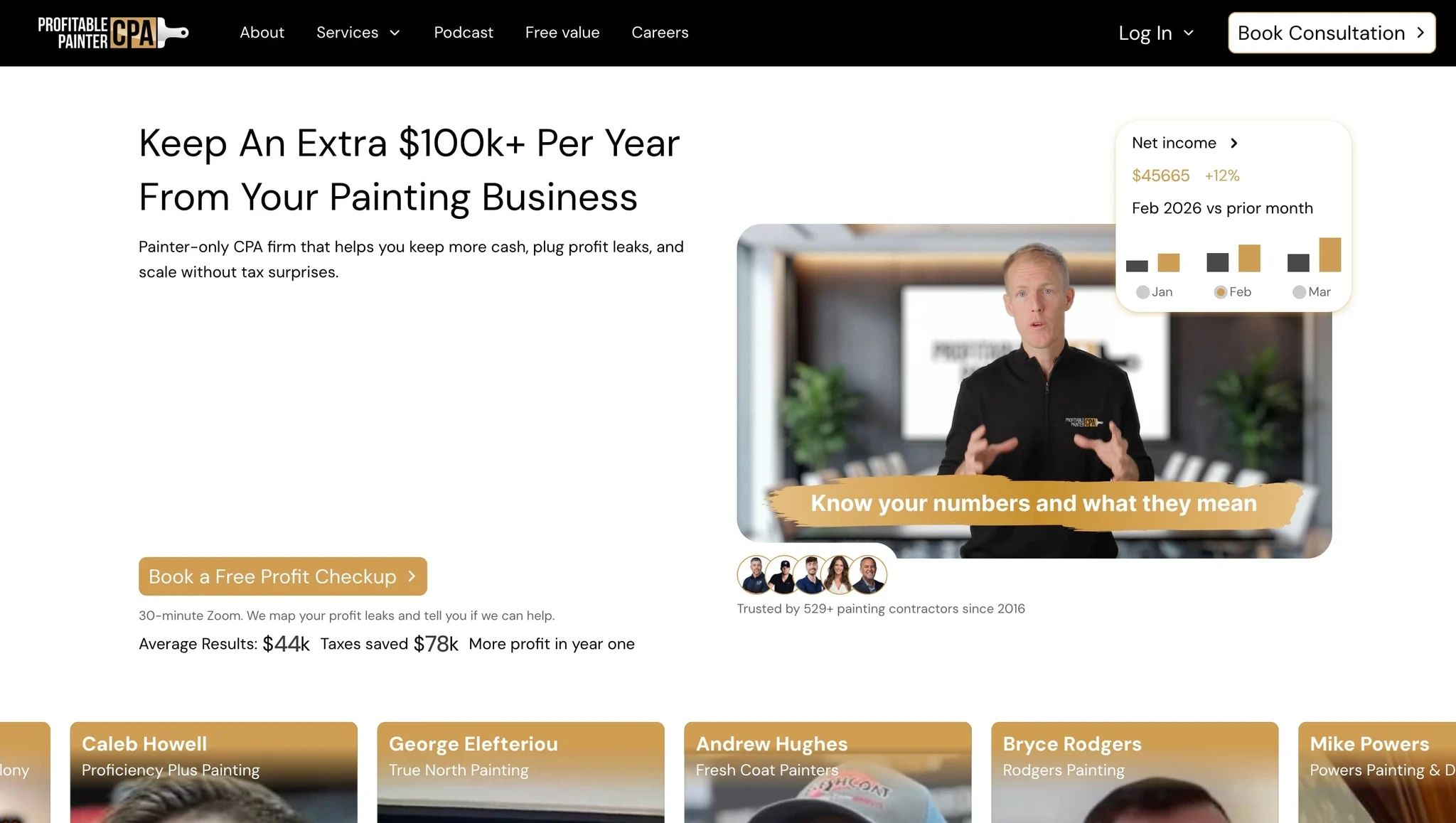
During the migration and redesign of Profitable Painter CPA, one of the biggest priorities was protecting the SEO authority the previous website had already built.
Before launch, every existing GoHighLevel URL was mapped and redirected to the correct new Framer destination.
That meant:
backlinks continued working
rankings remained stable
visitors avoided broken pages
Google could transfer authority correctly
The migration also included:
rebuilding the structure around user intent
simplifying navigation
improving trust signals
cleaning inconsistent layouts
improving CMS workflows
One interesting challenge was podcast migration.
The previous CMS setup inside GoHighLevel did not support clean CSV export workflows, which made traditional migration impossible. Instead of manually rebuilding episodes, an automated workflow connected the podcast RSS feed directly into the new website, allowing future episodes to publish automatically.
That type of operational improvement is often where the biggest long-term value of a migration comes from.
Not just how the website looks.
But how efficiently it works afterward.
Will I Lose SEO Migrating From WordPress to Framer?
Not if the migration is handled correctly.
Most SEO losses happen because:
redirects are missing
metadata disappears
URLs change unnecessarily
internal links break
important pages are deleted
A properly planned migration can preserve rankings while improving:
page speed
Core Web Vitals
mobile experience
crawlability
Is Framer Better Than WordPress for SEO?
Framer itself does not automatically guarantee better SEO.
But it often creates:
cleaner frontend performance
stronger Core Web Vitals
faster loading speeds
simpler publishing workflows
cleaner UX structures
Those improvements can positively affect SEO performance over time.
The real SEO advantage usually comes from:
better structure
cleaner execution
faster websites
better UX
Not simply the platform itself.
How Long Does a WordPress to Framer Migration Take?
That depends on:
site size
CMS complexity
redirect volume
design changes
content cleanup requirements
Typical migration timelines
Website Size | Estimated Timeline |
Small brochure site | 1–2 weeks |
Medium marketing website | 3–6 weeks |
Large CMS-heavy website | 6–12 weeks |
Most migration timelines increase significantly when:
content is disorganised
redirects were never documented
multiple builders/plugins are involved
SEO cleanup is needed
Should You Keep the Same URLs During Migration?
Yes whenever possible.
Keeping URLs identical:
reduces SEO risk
preserves rankings more effectively
simplifies redirect management
helps Google process the migration faster
Changing URLs should only happen when:
the structure is genuinely broken
URLs are unreadable
duplicate structures exist
consolidation improves UX and SEO
Final WordPress to Framer Migration Checklist
Migration Task | Complete |
Crawl all URLs | ☐ |
Export Search Console data | ☐ |
Build redirect map | ☐ |
Export metadata | ☐ |
Back up WordPress site | ☐ |
Set up Framer CMS | ☐ |
Import and clean content | ☐ |
Rebuild layouts | ☐ |
Configure metadata | ☐ |
Add schema markup | ☐ |
Configure 301 redirects | ☐ |
Generate sitemap | ☐ |
Test mobile responsiveness | ☐ |
Test forms and integrations | ☐ |
Submit sitemap to GSC | ☐ |
Monitor rankings after launch | ☐ |
If you are planning a WordPress to Framer migration and want to preserve rankings while improving performance, structure, and conversion flow, Frummerin Digital specialises in conversion-focused Framer websites built with SEO preservation in mind.
Frequently Asked Questions
Not if the migration is handled correctly. Most SEO losses happen because redirects are missing, metadata is lost, or important URLs are deleted during the migration process. A proper WordPress to Framer migration checklist helps preserve rankings, backlinks, and indexed pages.