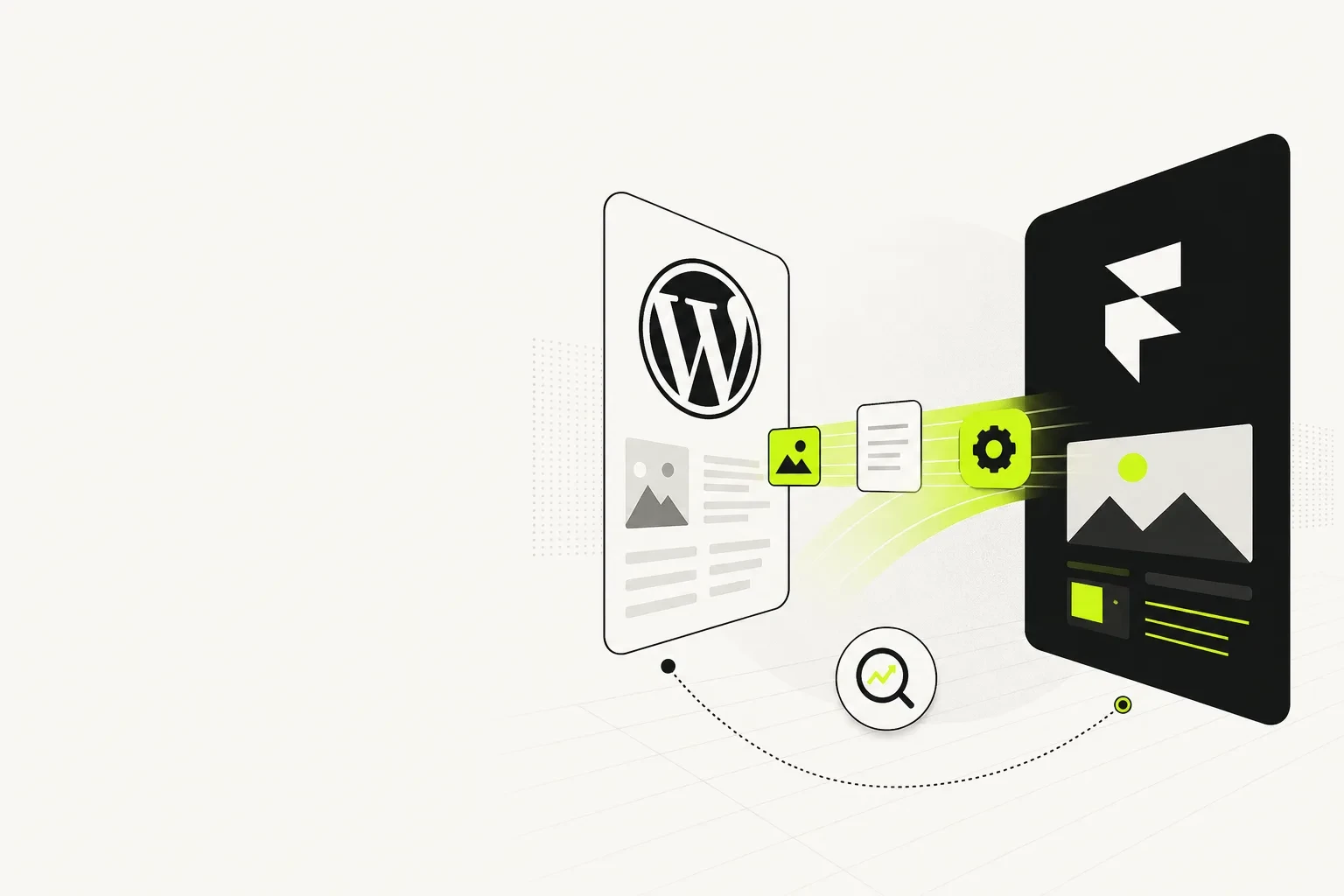

Audit your WordPress website before designing anything in Framer.
Back up the website and export important content, media, form submissions, and settings.
Record current URLs, metadata, organic landing pages, backlinks, conversions, and traffic benchmarks.
Decide whether each page should be kept, improved, consolidated, redirected, or removed.
Recreate required functionality instead of assuming WordPress plugins will transfer.
Keep valuable URLs unchanged where practical.
Create one-to-one 301 redirects for URLs that must change.
Build and test the Framer website privately before changing the domain connection.
Validate forms, analytics, CRM routing, mobile layouts, metadata, indexing settings, and redirects before launch.
Monitor Google Search Console, analytics, rankings, leads, and crawl errors after launch.
For a shorter implementation reference, use our WordPress-to-Framer migration checklist alongside this guide.
Visual overview of essential steps for migrating your website from WordPress to Framer.
Migrating your website from WordPress to Framer can be daunting, especially for service businesses looking to improve their online presence. But with the right guidance and steps, it can lead to a faster, more visually appealing, and conversion-focused website.
The most important thing to understand is that this is not usually a one-click platform transfer. Your content, URLs, metadata, forms, integrations, tracking, and search visibility all need to be accounted for. Your WordPress theme and plugins will not simply become Framer components.
A successful migration is therefore part website redesign, part content project, and part technical SEO project.
Why Choose Framer?
As the world shifts towards more dynamic web experiences, Framer stands out with its focus on high-performance design. Here are a few reasons why Framer can be an excellent choice:
Speed and performance: Framer can provide strong performance foundations when the website, media, fonts, embeds, and third-party scripts are configured carefully.
Flexible design options: With Framer’s design tools, you can create websites that are functional, visually distinctive, and responsive.
SEO optimization: Framer supports essential on-page and technical SEO requirements, allowing businesses to preserve or improve their organic foundations during a properly managed migration.
Simpler maintenance: A managed platform can reduce the need to coordinate themes, page builders, plugin updates, caching tools, and hosting configurations.
Integrated design workflow: Design and implementation can happen within a more unified environment, which can make future page updates easier for the right team.
These advantages do not mean that moving platforms automatically improves rankings or conversions. A Framer website can still perform poorly if it has unclear content, oversized media, excessive scripts, weak mobile layouts, broken redirects, or confusing calls to action.
The platform creates a foundation. The migration strategy and implementation determine the result.
Is Framer the right destination for your website?
Framer is often a strong fit for service businesses, contractors, agencies, consultants, B2B companies, and SaaS marketing websites. WordPress may remain the better fit for a large publishing operation, WooCommerce store, membership platform, or system that depends on specialized server-side plugins.
Website requirement | Framer fit | What to verify before migrating |
|---|---|---|
Service business marketing website | Strong | Forms, CRM routing, location pages, reviews, and conversion tracking |
Contractor lead-generation website | Strong | Service areas, quote forms, call tracking, galleries, and local SEO pages |
B2B or SaaS marketing website | Strong | Product integrations, documentation, gated assets, and campaign pages |
Moderate blog or resource center | Often suitable | CMS limits, taxonomy, author pages, filtering, and content workflow |
Large publishing operation | Requires closer review | Archive depth, editorial permissions, search, taxonomy, and content volume |
WooCommerce store | Usually not a direct replacement | Products, checkout, customer accounts, taxes, inventory, and order management |
Membership or portal website | Requires another system or integration | Authentication, permissions, billing, and user data |
Plugin-dependent application | Requires technical discovery | Every plugin's actual function and possible replacement |
If you are still comparing the platforms, read Framer SEO vs WordPress before committing to a migration.
What Actually Moves From WordPress to Framer?
A common migration mistake is treating the project as if the entire WordPress installation can be imported into Framer unchanged.
In practice, different parts of the website require different treatment.
Content that can usually be transferred
Page copy
Blog articles
Images and downloadable files
Page titles and meta descriptions
Author and publication information
Categories or other relevant CMS fields
Legal and policy content
Testimonials, FAQs, team profiles, and service details
Some content may be imported or processed in batches, while other content may require manual formatting and review. Do not assume an import is complete merely because the text appears in the new CMS.
Elements that usually need to be rebuilt
Page layouts
Headers and footers
Navigation menus
WordPress theme templates
Reusable page sections
Contact and quote forms
Calculators or interactive tools
Search and filtering experiences
Pop-ups and conditional content
Plugin-generated features
Tracking and consent configurations
Assets and settings that need deliberate handling
URL slugs
301 redirects
Canonical URLs
Structured data
Image alt text
Open Graph images
Analytics scripts
Advertising pixels
Cookie consent tools
CRM connections
Email notifications
Domain and DNS settings
This is why technical discovery should happen before design. You need to know what the website does, not merely what it looks like.
Before You Start: Build a Migration Inventory
Create a migration workbook with one row for every current URL. This becomes the control document for content, SEO, redirects, and approvals.
Current URL | Action | New URL | Redirect required? | SEO fields recorded? | Status |
|---|---|---|---|---|---|
| Keep and improve |
| No | Yes | Draft |
| Consolidate |
| Yes | Yes | Approved |
| Keep | Same URL | No | Yes | Migrated |
| Remove | Relevant alternative or none | Maybe | Yes | Pending review |
Assign one of these decisions to every page:
Keep: The page remains useful and retains its URL.
Improve: The subject and URL remain valuable, but the content needs revision.
Consolidate: Multiple overlapping pages become one stronger resource.
Redirect: The old page is replaced by a genuinely relevant destination.
Remove: The page has no value and no suitable replacement.
Do not redirect every removed page to the homepage. A redirect should take users and search engines to the closest relevant replacement. If no relevant replacement exists, forcing an unrelated redirect can create a poor experience.
Step-by-Step Migration Process
Generation needs attention: Unexpected token 'e', "error code: 520 " is not valid JSON
Migrating from WordPress to Framer involves several key steps.
1. Assess your current WordPress site
Evaluate your existing WordPress site. Take note of essential content, functions, and SEO performance metrics.
Inventory:
Pages and blog posts
Indexed URLs
Navigation and footer links
Forms and lead destinations
WordPress plugins and their actual functions
CRM, scheduling, email, and payment integrations
Downloadable assets
Tracking scripts and advertising pixels
Structured data
Legal pages and consent tools
Domains, subdomains, and DNS records
Also identify which pages currently contribute to the business. Review organic landing pages, conversions, qualified enquiries, backlinks, and rankings where those data are available.
A low-traffic page is not automatically useless. It may support a high-value sales conversation, answer an important objection, or attract a small number of valuable prospects.
2. Record performance and SEO benchmarks
Capture a pre-migration baseline so you can distinguish normal launch fluctuation from a genuine problem.
Record:
Organic clicks and impressions
Important keyword positions
Top organic landing pages
Indexed page count
Leads and conversion rates
Form completion data
Calls or booked meetings, if tracked
Core performance measurements
Backlinks to important URLs
Existing crawl errors
Export relevant information from your analytics platform and Google Search Console. Take screenshots or save reports for the period you plan to compare after launch.
3. Back up your data
Ensure that all your current data, including posts, images, and relevant user or form data, is backed up before migration work starts.
A complete backup may include:
WordPress files
Database
Media library
CMS content exports
Theme and plugin settings
Form submissions that must be retained
Redirect rules
DNS records
Analytics and tracking configurations
Store the backup somewhere separate from the current hosting account. Verify that the files are accessible rather than assuming an automated backup succeeded.
Keep the WordPress website available until the Framer site has launched successfully and the rollback window has passed.
4. Define the new website requirements
List the capabilities the current website provides and decide which are still required.
For every WordPress plugin, ask:
What business or user need does this plugin address?
Is the feature currently used?
Can Framer handle the requirement directly?
Is a third-party integration required?
Could the process be simplified rather than recreated?
Who owns and maintains the replacement?
This prevents unnecessary technical debt from being carried into the new website.
5. Plan the sitemap and URL structure
Create the new sitemap before building pages. Keep existing URLs where they remain clear, accurate, and useful. Changing every slug for stylistic consistency creates more migration work and risk without necessarily helping users.
Change a URL when there is a sound reason, such as:
Consolidating duplicate pages
Correcting an inaccurate hierarchy
Replacing an obsolete service name
Simplifying an unnecessarily complex path
Reorganizing content around clearer user intent
Our guide to structuring a service business website for growth can help with sitemap decisions.
6. Set up your Framer environment
Create your new Framer project. Familiarize yourself with the platform’s tools and framework.
Before adding every page, establish:
Global type styles
Brand colors
Spacing rules
Reusable buttons and form elements
Navigation and footer components
Desktop, tablet, and mobile behavior
CMS collections and fields
Image treatment
Accessibility conventions
Naming and publishing responsibilities
Building the system first creates consistency and makes quality assurance more manageable.
7. Configure the Framer CMS
Map your WordPress content model to appropriate Framer CMS collections.
A blog collection may require fields for:
Article title
Slug
Summary
Body content
Author
Publication date
Updated date
Category
Featured image
Featured image alt text
Meta title
Meta description
Social sharing image
Service businesses may also need collections for locations, team members, projects, testimonials, FAQs, or resources.
Test a small number of records before migrating the full content library. Confirm that rich text, headings, lists, images, links, and embedded elements display correctly.
8. Import and review content
Transfer your content manually or use suitable tools where available. Ensure your key pages and posts are included.
Migration is also an opportunity to remove outdated claims, repair broken links, clarify service information, and improve calls to action. However, avoid rewriting every ranking page without evidence that it needs substantial change. Simultaneous platform, URL, design, and content changes make performance shifts harder to diagnose.
Review every migrated page for:
Missing sections
Broken formatting
Incorrect heading hierarchy
Missing images
Broken internal or external links
Missing alt text
Unclear calls to action
Outdated information
Duplicate metadata
Accidental draft content
9. Design and optimize the new experience
Use Framer’s design capabilities to create an engaging site layout. Optimize for speed and mobile compatibility during this phase.
For a service business, each important landing page should quickly communicate:
What the company offers
Who the service is for
What problem it solves
Why the business is credible
What the visitor should do next
A website should not function only as a digital brochure. It should help qualified visitors understand the offer, build trust, and take the next step.
Use animation selectively. Movement should clarify interaction or hierarchy rather than delay access to the message. Compress images, limit unnecessary scripts, and test real mobile layouts instead of relying only on desktop previews.
10. Rebuild forms and integrations
Forms are among the most important migration risks because a page can look correct while leads fail silently.
For every form, document:
Required fields
Validation behavior
Success message or thank-you page
Notification recipients
CRM destination
Automation or email sequence
Spam protection
Consent language
Conversion event
UTM or source tracking requirements
Submit real tests using multiple devices and email addresses. Confirm that the lead reaches every required destination and that the sales team can identify its source.
11. Implement SEO essentials
Implement proper redirects and SEO strategies to maintain search visibility. Use tools such as Google Search Console to monitor performance after launch.
Each indexable page should be reviewed for:
Unique title tag
Useful meta description
One clear primary heading
Logical subheadings
Correct canonical URL
Descriptive image alt text where needed
Internal links
Crawl and indexing status
Social sharing details
Structured data requirements
Preserve important content and relevance. A technically correct redirect cannot compensate for replacing a useful, detailed page with a thin or unrelated one.
12. Create and test the redirect map
Create a one-to-one redirect for every changed URL that has traffic, links, rankings, user value, or a relevant replacement.
Test redirects for:
Correct destination
Correct status behavior
No loops
No chains through multiple old URLs
Both trailing-slash variations where relevant
Common protocol and hostname variations
Old downloadable files that have moved
Update internal links to point directly to final URLs. Do not rely on redirects to repair links within the new website.
13. Complete pre-launch quality assurance
Before going live, run comprehensive tests to ensure all functionalities work as intended.
Content and design
Review every template and priority page.
Check desktop, tablet, and mobile breakpoints.
Confirm buttons and calls to action are consistent.
Check long headings, unusual CMS records, and empty states.
Proofread contact details, service areas, and legal information.
Functionality
Submit every form.
Test CRM and email routing.
Test scheduling, downloads, search, filters, and embeds.
Confirm telephone and email links work.
Verify thank-you pages and conversion events.
SEO
Crawl the preview or staged site where possible.
Check titles, descriptions, canonicals, headings, and internal links.
Confirm the XML sitemap behavior.
Check indexing controls before and after launch.
Test every planned redirect.
Look for accidental broken links and orphaned pages.
Measurement
Verify analytics on multiple page types.
Confirm conversion events.
Check advertising and remarketing tags where required.
Exclude internal or test traffic where appropriate.
Record the final launch annotation and date.
14. Launch with a rollback plan
Once all checks are complete, launch the site.
Choose a launch window when the required people can monitor the website and resolve issues. Avoid launching immediately before a holiday, major campaign, or period when technical support is unavailable.
The launch plan should identify:
Who controls the domain and DNS
Who publishes the Framer website
Who checks forms and leads
Who tests redirects
Who monitors analytics and Search Console
What conditions would trigger a rollback
How the previous website can be restored if necessary
After the domain is connected, repeat critical tests on the live URL. Preview success does not guarantee that DNS, canonical, tracking, form, or redirect behavior is correct in production.
15. Monitor the website after launch
A migration is not finished when the homepage loads.
Monitor the website closely during the first days and weeks for:
Crawl errors
Unexpected 404 pages
Indexing changes
Redirect failures
Organic landing-page changes
Ranking movement
Form and call volume
Conversion tracking gaps
Mobile usability problems
Performance issues
Compare like-for-like periods where possible and consider seasonality, campaigns, and demand changes. Some search fluctuation can occur after a major migration, but persistent losses concentrated around particular pages or URL groups require investigation.
WordPress-to-Framer SEO Migration Checklist
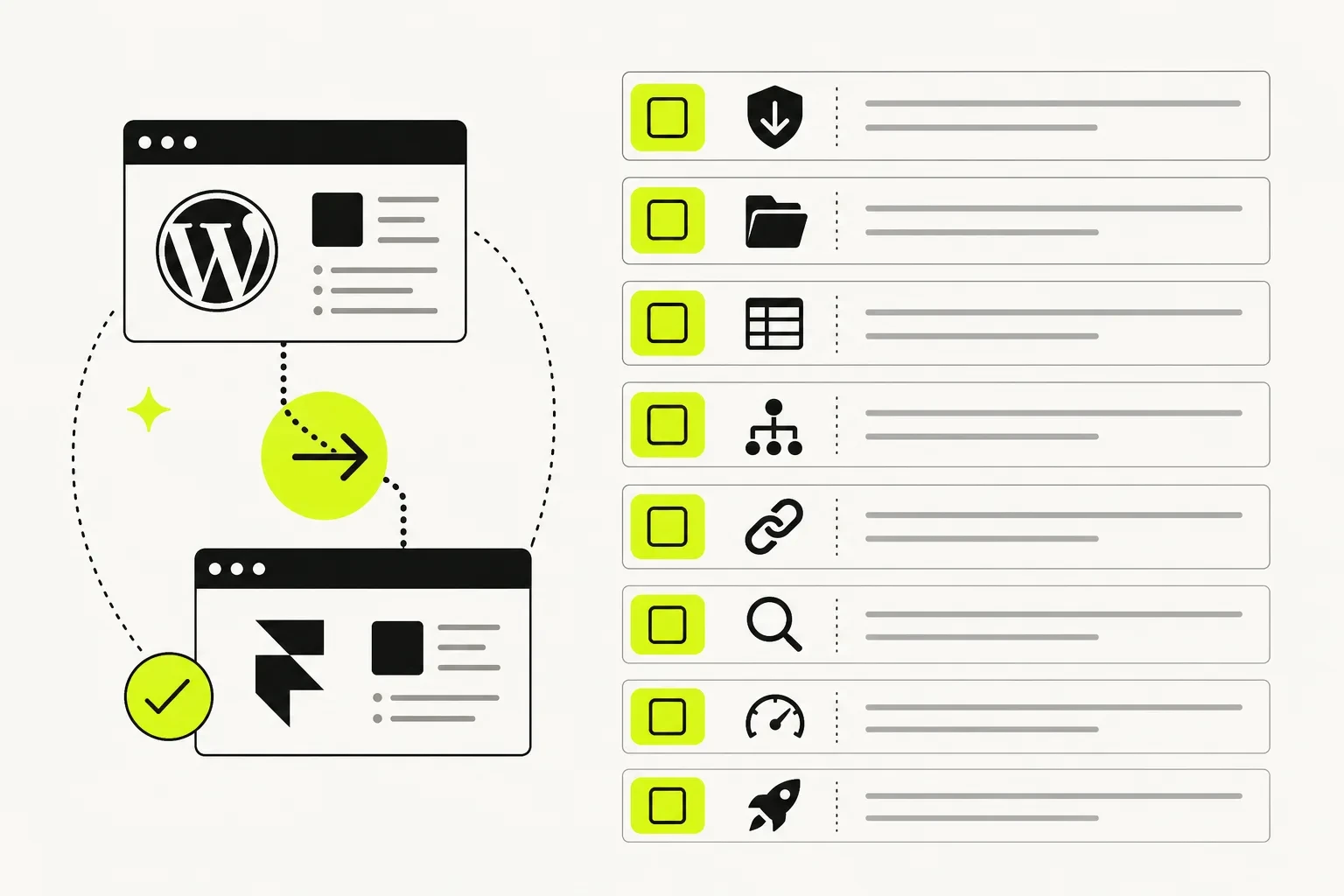
Assessing whether Framer is the right choice for your website migration.
Before development
[ ] Export all known URLs.
[ ] Record indexed pages and organic landing pages.
[ ] Save titles, descriptions, headings, and canonicals.
[ ] Identify pages with backlinks, traffic, leads, or rankings.
[ ] Export analytics and Search Console benchmarks.
[ ] Inventory structured data and tracking scripts.
[ ] Decide which pages to keep, improve, consolidate, redirect, or remove.
During development
[ ] Preserve useful URLs where practical.
[ ] Build complete title and description fields.
[ ] Maintain logical heading structures.
[ ] Recreate important internal links.
[ ] Add descriptive alt text where images convey information.
[ ] Configure canonical URLs correctly.
[ ] Recreate required structured data accurately.
[ ] Prevent the development version from becoming an indexed duplicate.
Before launch
[ ] Complete the old-to-new URL map.
[ ] Test all 301 redirects.
[ ] Remove redirect chains and loops.
[ ] Check the sitemap.
[ ] Verify robots and indexing settings.
[ ] Crawl the website for broken links.
[ ] Test analytics and conversion events.
[ ] Confirm forms and CRM routing.
[ ] Check desktop and mobile layouts.
After launch
[ ] Test high-value URLs on the live domain.
[ ] Confirm analytics is receiving data.
[ ] Verify the website in Google Search Console.
[ ] Submit or confirm the new sitemap.
[ ] Monitor indexing and crawl reports.
[ ] Repair unexpected 404 errors.
[ ] Compare traffic, rankings, and leads with the baseline.
[ ] Keep the redirect map available for future troubleshooting.
Common Challenges and Solutions
Migrating can pose challenges, including the following.
Data loss
Risk: Posts, images, form records, metadata, or settings are missed during the move.
Solution: Perform and verify backups before starting. Use the migration inventory to compare record counts and manually review representative content from every template.
SEO drop
Risk: Valuable URLs change without redirects, content is reduced, metadata disappears, or pages become difficult to crawl.
Solution: Preserve useful URLs, set up one-to-one 301 redirects, retain the intent and depth of valuable pages, and monitor Google Search Console after launch.
Design gaps
Risk: The new site looks polished on one screen size but fails on mobile, CMS edge cases, or longer content pages.
Solution: Establish responsive rules early. Test real content, unusually long titles, different image ratios, and multiple devices before launch.
Missing plugin functionality
Risk: A WordPress plugin provided a business-critical feature that was not visible during design discovery.
Solution: Inventory plugins by function, not name. Confirm a native solution, external service, custom implementation, or revised workflow before approving the migration scope.
Broken forms or lead routing
Risk: Forms appear to submit but do not reach the sales team, CRM, or analytics platform.
Solution: Test the complete journey from submission to notification, CRM record, automation, thank-you state, and conversion event.
Poor content formatting
Risk: Imported posts contain broken headings, images, links, tables, or embeds.
Solution: Test a sample before bulk migration and complete a structured editorial review afterward. Automated imports still require human quality assurance.
Analytics discontinuity
Risk: The new website launches without equivalent tracking, making performance comparisons unreliable.
Solution: Document the current measurement setup before development. Validate page views and important events on the live site, then annotate the migration date.
Too many simultaneous changes
Risk: The platform, domain, URLs, design, positioning, content, analytics, and conversion journey all change at once.
Solution: Minimize unnecessary variables. Preserve strong content and URLs, document intentional changes, and prioritize the changes most likely to improve the business outcome.
Migration Phases and Deliverables
Phase | Main work | Required output |
|---|---|---|
Discovery | Audit content, functionality, traffic, and integrations | Requirements and risk register |
Planning | Create sitemap, content decisions, and URL mapping | Approved migration workbook |
System design | Define styles, components, breakpoints, and CMS | Reusable Framer system |
Build | Create pages, templates, forms, and integrations | Complete private website |
Content migration | Transfer and review pages, posts, and media | Approved content inventory |
SEO implementation | Add metadata, canonicals, internal links, and redirects | SEO and redirect checklist |
Quality assurance | Test design, functionality, tracking, and crawlability | Resolved issue log |
Launch | Connect domain and validate production behavior | Live, tested website |
Monitoring | Review indexing, traffic, leads, and errors | Post-launch action list |
Should You Migrate and Redesign at the Same Time?
For many service businesses, migration is the right time to improve the design because rebuilding the existing WordPress theme exactly may preserve the same usability and conversion problems.
A combined redesign and migration makes sense when:
The offer or positioning has changed.
Visitors struggle to understand the services.
The navigation reflects an outdated business structure.
The website performs poorly on mobile.
The design no longer supports credibility.
Calls to action and lead paths are unclear.
The content needs consolidation.
A more conservative migration may be appropriate when:
Organic visibility is strong and the main goal is platform simplification.
A separate rebrand is planned soon.
The business cannot approve new content within the timeline.
Several mission-critical integrations still need validation.
The migration must happen urgently because of a hosting or security issue.
If a redesign is required, review the factors that affect website redesign cost before setting the scope.
Final Thoughts and Next Steps
Migrating from WordPress to Framer offers meaningful opportunities for service businesses seeking a clearer, more maintainable, and conversion-focused website. When done right, it can improve both user experience and the way the internal team manages the website.
The safest process is methodical:
Audit what exists.
Protect the data.
Define the required functionality.
Preserve valuable content and URLs.
Build the new system in Framer.
Test every important user and lead journey.
Launch with redirects, monitoring, and a rollback plan.
For businesses unsure about managing this transition, We can help plan and build the new Framer website with content, conversion, performance, and SEO requirements considered together.
Explore our Framer website design services or learn more about our Framer website development services to get started.
Frequently Asked Questions
Parts of the content may be exported, imported, or processed with migration tools, depending on the website structure. However, the complete website rarely transfers automatically. Themes, page-builder layouts, plugins, forms, and custom functionality generally need to be recreated or replaced.
Any platform migration can affect organic performance if URLs, content, internal links, metadata, canonicals, or crawl settings change incorrectly. Risk can be reduced through careful auditing, URL preservation, one-to-one redirects, pre-launch testing, and post-launch monitoring. No responsible migration process can guarantee that rankings will never fluctuate.
Preserve strong elements that still support the business. Redesign areas that create confusion, weaken credibility, perform poorly on mobile, or make conversion difficult. A migration does not justify changing effective content and layouts without a clear reason.